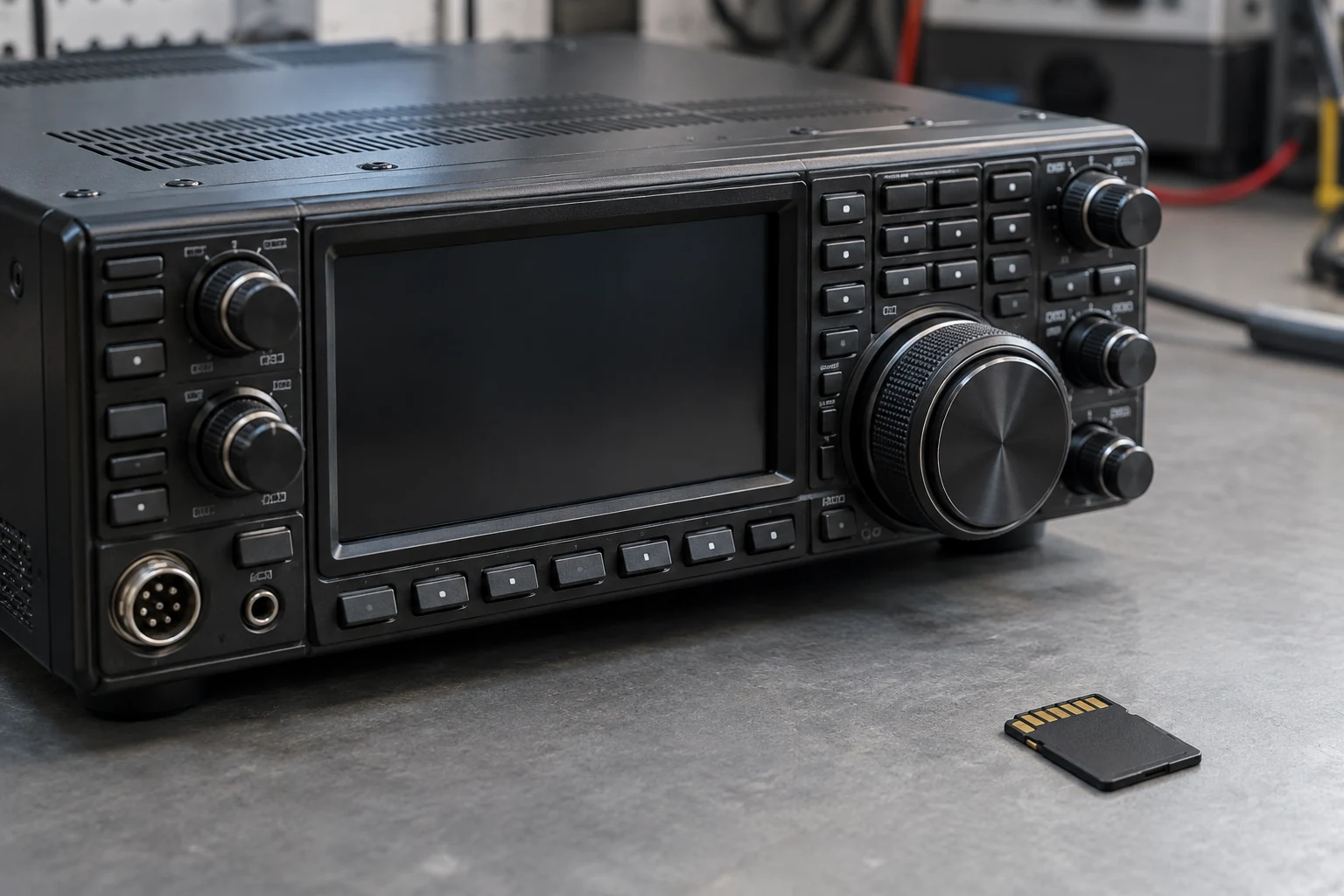
Back up the working radio before you reset it: record the channels you cannot afford to lose, export the configuration using the exact model’s documented method, make an independent copy, and check whether that file is suitable for the firmware on which you intend to restore it. A saved filename alone is not enough. The IC-7300 provides a useful worked example because its SD-card setting data includes memory-channel and preset-memory contents. Its menus and file format are not instructions for other radios; a handheld or another transceiver may require a different, model-specific programming or export procedure.
Choose the Backup Method and Record What Must Survive
First, establish what the contemplated reset would do on your radio. The IC-7300 manual says an All Reset clears memory-channel contents and operating settings that would need to be rewritten. Its Partial Reset does not clear memory-channel contents. That distinction helps you assess the risk of a reset already under consideration; neither option is a reason to skip a backup, and neither should be treated as a routine fix for an unrelated problem. Check the reset description for the exact model rather than assuming its options match the IC-7300’s.
Next, identify a supported way to get data out of that model and a documented way to load it back. For the IC-7300, Save Setting writes setting data to an SD card, and the data described by Icom includes memory-channel and preset-memory contents. The IC-7300’s Load Setting function can load memory channels and transceiver settings from the card. These are the capabilities that make the SD-card workflow below relevant to an IC-7300 owner. They do not establish that another radio has the same menu, saves the same fields, or accepts the same file.
Write down the radio’s exact model, its current firmware version, and the export method you will use. Also identify the radio and firmware you expect to use for restoration—particularly if the backup might be needed after a firmware change or on another unit. For an IC-7300, leave room in those notes for the saved filename and Save Form selection; both matter when you later identify the file and assess compatibility. The practical question is not merely “Did something save?” but “Do I know which file belongs to this configuration, and is its format appropriate for the intended target?”
Keep a second kind of backup: a readable record of critical channels. For each one, note its number or name and the operating fields you would need to check or re-enter, such as receive frequency, applicable offset and tone, and power setting. Keep that record with your model and firmware notes, separately from relying on the radio’s current display. It gives you a reference if a file cannot be loaded and something concrete to compare after a later restoration. It does not prove that the exported file contains those fields or will restore successfully.
Decide what “must survive” before you start exporting. If particular preset memories or settings matter as well as channels, include them in your recovery requirements and confirm that the exact model’s documented method covers them. An export that omits a needed setting is not made adequate by copying it twice. If you cannot establish what the available export preserves, pause the reset plan and find a supported method or retain the working configuration.
| Record | What to write |
|---|---|
| Radio identity | Record the exact model and current firmware version. |
| Channel identity | For each critical channel, record its number or name. |
| Receive frequency | Record the receive frequency for each critical channel. |
| Offset and tone | Record the applicable offset and tone settings for each critical channel. |
| Power | Record the power setting for each critical channel. |
Prepare an Ic-7300 SD Card Without Losing Existing Files
The IC-7300 manual specifies an SD card of up to 2 GB or an SDHC card of up to 32 GB. Choose documented compatible media for this model; those limits are not a statement about what every radio accepts. Owners of other models should use their own manuals’ card requirements and preparation procedures rather than applying the IC-7300 limits or menus by analogy.
Before formatting a used card, copy its existing data to a PC. Formatting erases all data on the card. This protects files that were already there; it is not yet a backup of the new settings export you are about to make. If you cannot protect existing data that you need, use suitable media whose contents you can safely erase or stop here. Do not sacrifice the card’s existing files to reach the save step.
Icom instructs IC-7300 owners to format all cards using the transceiver’s built-in Format function before use—including new cards and cards previously formatted on a PC. The manual explains that this creates a folder needed for operations such as firmware updating. A card’s being new, empty-looking, or PC-formatted therefore does not replace the model’s required preparation. Format only after resolving the data-loss warning above, and follow the IC-7300’s documented Format procedure.
There are two distinct checkpoints here. At the first, you have suitable storage and have protected anything already on it. At the second, reached later, you will have a newly saved settings file and a separate PC copy of that export. Do not treat the pre-format copy of an old card as evidence that the radio’s present channels have been saved. If a compatible card or a safe way to protect its existing contents is unavailable, pause rather than move toward a factory reset.
Save the Settings and Make a Separate PC Copy
The following sequence is for an IC-7300 with a prepared SD card. It follows Icom’s full-manual Save Setting flow; another model needs its own documented export sequence. Keep the model and firmware notes, plus your readable critical-channel record, at hand so you can associate the resulting file with the working radio.
- Insert the prepared card into the IC-7300. Open MENU > SET > SD Card > Save Setting, then select <<New File>>. The radio proposes an automatic filename containing a date and serial number. You can retain it and write that exact name in your backup notes.
- If you prefer a custom name, the IC-7300 manual allows up to 15 characters: letters, numbers, some symbols, and spaces. It disallows
\ / : ; * ? " < > ǀ. Use a supported name rather than assuming a PC-style filename will be accepted. Whether you keep the automatic name or enter a new one, record it beside the model and firmware information. - Touch ENT, then YES to save. There is a conditional extra confirmation if Save Form is set to an earlier firmware version; follow that prompt only if it applies to the format you have deliberately selected. Note the Save Form choice rather than treating the two formats as interchangeable. During writing, the SD-card icon blinks. Wait until saving finishes and the display returns to the SD Card setting screen before treating the export as complete.
A completed save means the radio has written setting data to the card. It does not mean you yet have an independent copy. The IC-7300 full manual identifies Setting as the folder for transceiver setting data in dat format. That distinguishes the settings export from recordings and other contents you may find on the card. When checking what you copied, look for the expected settings data rather than taking the presence of unrelated card files as confirmation of a channel backup.
Before removing the card while the IC-7300 is on, electrically unmount it using the radio’s documented procedure. Wait for access to finish first. This is a card-handling requirement, not a backup-verification step; pulling the card immediately after seeing a filename defeats the careful save sequence.
Then insert the card into a PC reader and copy its data to a separate backup folder on the PC. Icom’s full manual documents copying the SD-card data to a PC folder; a full-card copy preserves the card contents together, while the Setting folder identifies where the IC-7300 settings data resides. Use the equivalent file-copy method for your operating system, check that the expected saved file is present in the PC copy, and safely eject the card from the PC when finished. Keep the readable channel record and your model, firmware, filename, and Save Form notes with that backup folder.
You now have two locations to distinguish: the settings file on the SD card and its independent copy on the PC. If the save never completed, the expected file is missing from the PC copy, or you cannot associate the file with the radio you documented, resolve that gap before considering a reset. A copied filename shows that a file was copied; it cannot, by itself, establish what a later load will recover.
Check Restoration Readiness Before Deciding to Reset
Check as much as you can without changing the working radio. After making the PC copy and safely ejecting the card from the PC, reinsert it into the IC-7300. Open MENU > SET > SD Card > Load Setting to display saved files and identify a candidate by its recorded name. Stop at identification. The manual’s subsequent “file check” occurs after choosing Load and YES, and is followed by loading data into the transceiver. Even the Select loading option loads Set-mode settings and memory-channel contents. The listing is therefore not an independent, nondestructive inspection of backup contents, and a test load onto your only working configuration is not a safe prerequisite for deciding whether to reset.
Instead, match the listed candidate to your notes and confirm the expected file is also in the separate PC copy. Use the readable channel record to define what restoration must recover and what you will later compare—not to claim you have inspected the file’s internal contents. These checks improve confidence that you have identified and retained the intended export. They do not prove its contents or guarantee a successful future restore. If another model offers a way to examine an export without loading it, rely on that only if the model’s documentation specifically supports it.
Compatibility is the next decision. The IC-7300 manual says a setting file saved in the current-version format cannot be loaded into earlier firmware. It also says choosing Old Ver leaves out a function added when the firmware format was updated. Record the actual Save Form used and the firmware of the intended restoration target. A file that suits an older target may omit something you need; a current-format file may not load on that older target at all. Do not downgrade firmware just to make a backup file load. If the format, target firmware, or preservation of needed settings cannot be established, make a supported compatible export that preserves what matters—or stop before resetting.
That leaves a conditional, not an absolute promise:
- Proceed with a reset already contemplated only if the exact model’s export has completed, you can identify the saved file, an independent PC copy and readable critical-channel record exist, and the documented restoration path is credible for the intended firmware and needed data.
- Do not reset if the export failed, the file cannot be identified or copied, its format is unsuitable or uncertain, or you otherwise lack a credible backup. Keep the working configuration while you resolve the problem.
After any later restoration, compare the restored critical channels with your record. Check their receive frequencies, applicable offsets and tones, and power settings before any authorized transmission. That is a post-restoration check, not an invitation to destroy or overwrite the only working configuration as a backup test.
The practical rule is simple: finish the model-supported export, retain an independent copy and readable reference, and establish a plausible compatible way back before committing to a factory reset. If that chain has a gap, do not reset.
Continue reading
Keep learning about radio