To use EchoLink, install an official supported client, register your own amateur call sign, complete license validation, and test your microphone and speaker through the EchoLink test server. Then select an available station, listen before speaking and make a short identified call. You can begin from a computer or supported mobile app without building a radio gateway yourself.
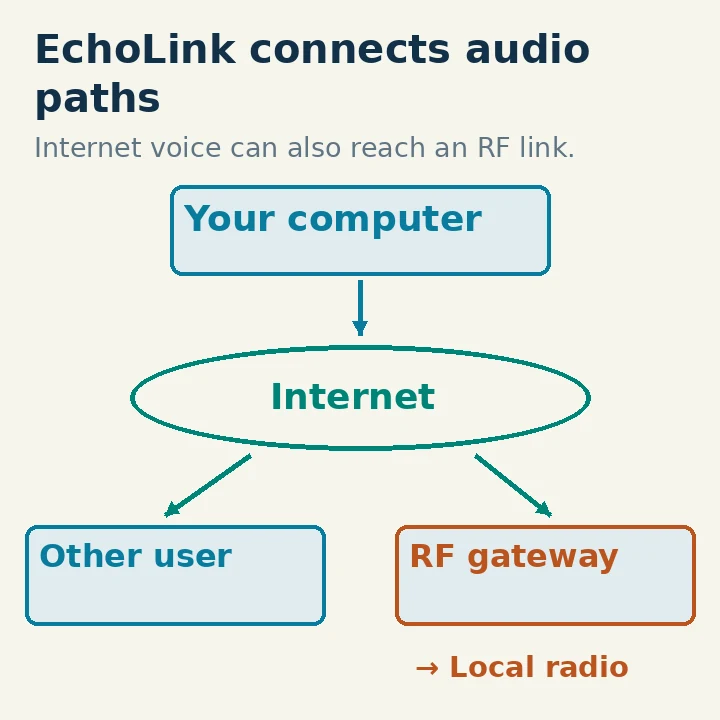
EchoLink carries voice over the Internet and can connect that audio to amateur repeaters and simplex radio links. It is not a new digital RF modulation mode. A conversation may therefore include Internet-only participants, radio users, or both. Knowing which node you joined helps you operate appropriately.
Choose Single-user Operation for a First Session
The straightforward starting arrangement is a computer with Internet access, microphone and headphones or speaker. The official service describes Windows software and official iOS and Android apps. Download through the service's own website or its linked app-store entries, rather than a similarly named third-party download site.
In the Windows setup, choose Single-User operation if you are speaking from the computer and have no transceiver connected to it. Sysop mode enables the radio-link functions used to connect a transceiver through an appropriate interface. Selecting Sysop mode does not improve a computer microphone connection; it introduces a different station-control task.
This guide's menu examples refer to the documented Windows client. Mobile control labels and networking behavior differ. The underlying order—validate, test audio, select a station, listen and identify—still applies.
For your first test, avoid connecting an actual radio to the computer. Establish the ordinary user session first. A live RF gateway needs additional control, audio and regulatory checks and is not a prerequisite for making a user connection.
Register and Validate Your Own Call Sign
Run the client and enter your own current amateur call sign and the requested account details. The official validation page says to download, install and run the software first, because that registers the call sign with the system. Then use the service's validation workflow to provide proof of license. Available methods vary by country.
Do not use a club member's credentials or an invented call sign to bypass validation. If your call sign changes, follow the service's call-sign-change process rather than treating the old validation as a permanent entitlement to any new identity.
Keep your password private, and supply validation documents only through the official process. Wait for the service to confirm access; seeing the software installed is not the same as having a validated account. The service's FAQ distinguishes missing validation, incorrect passwords and networking problems as different reasons a station list might fail to appear.
Once connected, inspect your own information and audio-device choices before calling someone. A laptop microphone may be usable, but headphones can make it easier to prevent received sound from feeding back into your microphone during a test.
Use the Test Server Before Joining a Conversation
In the documented Windows client, use Station → Connect To Test Server to reach the ECHOTEST server. The user guide describes it as a service that records and plays back the audio you send. It also notes that you cannot connect to this test server while another conference is already connected.
Make a short test transmission with your call sign and a few ordinary words, then stop transmitting and listen to the playback. Check that the microphone is the one you intended, that speech is understandable and that the level is not harsh or clipped. Speak normally rather than shouting to compensate for the wrong input selection.
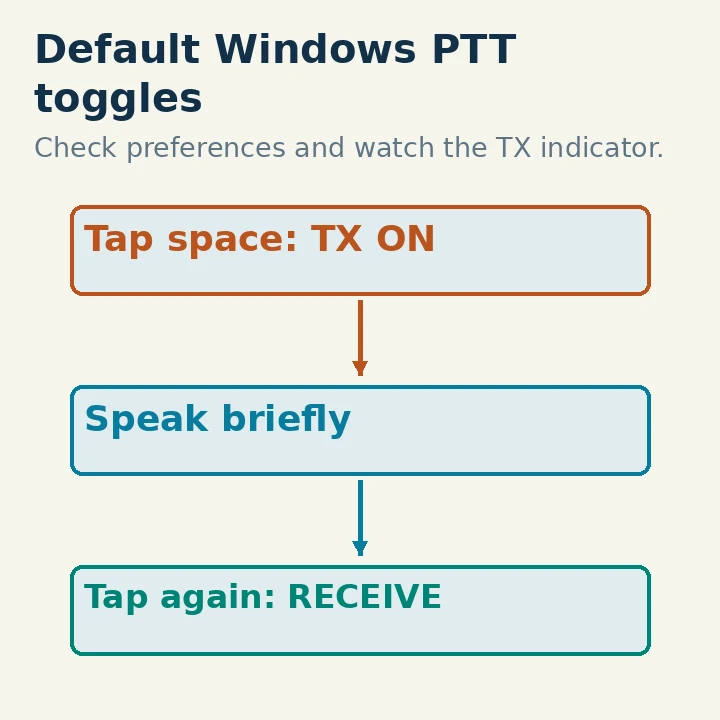
In the Windows guide's default arrangement, tapping the space bar toggles transmit on, and tapping it again returns to receive. It is a locking software PTT control, not necessarily a “hold while speaking” button. Preferences can change that behavior. Watch the TX indicator and deliberately end the transmission.
If playback is silent, inspect the selected microphone, operating-system permission and input level. If you cannot hear any audio, verify the selected output and volume. Passing an operating-system microphone test alone does not prove that EchoLink uses the same device.
Disconnect from ECHOTEST when finished. A successful round trip gives you a known starting point before you involve another operator or a live repeater.
Understand the Station You Are Selecting
A station entry can represent an individual user, a simplex radio link, a repeater link or a conference server. A node is an EchoLink endpoint with an identifying number. In the documented naming convention, -L marks a link and -R a repeater; a conference name is commonly shown between asterisks. Read the station description rather than interpreting every call sign as a person sitting at a computer.
A repeater link may put your voice onto a local RF channel heard by people who did not initiate your Internet connection. Listen to the existing conversation and any announcements. Do not assume that an available-looking node is an empty private channel.
To connect in the Windows client, select the station and choose Station → Connect, or double-click the entry as described in the guide. Connect To lets you enter a call sign or node number, but the guide still requires the target to be listed as available. An old node number does not guarantee the station is online now.
For a first human contact, choose a station or conference whose description makes its purpose clear. An advertised beginner session or a prearranged local-club test is easier to understand than repeatedly connecting to random busy links.
Make a Courteous First Contact
After the connection completes, pause and listen. If someone is speaking, allow the exchange to finish. Where appropriate, give your full call sign and a short introduction: you are a new EchoLink user, where you are located, and that you are listening for a contact.
Use the client PTT deliberately. Watch the transmit indicator and stop before waiting for a reply. Leave gaps between transmissions so linked systems can release and other users can enter. A single Internet connection can involve several radios and network links, so tight rapid exchanges can make participation difficult.
If there is an active net, follow its check-in instructions. If your connection is unwelcome or the node is reserved for a particular activity, thank the operator and disconnect rather than changing the node's behavior. Users should not experiment with gateway control commands without the owner's instructions.
At the end, identify, return to receive, and choose Disconnect. Close the connection you intended; conference operation can involve more than one connected station. Save a favorite or note the node's purpose only after you have verified what it actually provides.
Diagnose Connection Failures by What Already Works
If the station list never appears, check validation, call sign/password and Internet access first. If the list appears but connections repeatedly time out, the official FAQ directs you to firewall and router checks. Seeing the list proves less than a complete audio connection.
On a direct Windows configuration, the official firewall guidance discusses UDP 5198/5199 and TCP 5200. Use the current official instructions for your exact arrangement. Do not disable the computer's entire firewall or put the machine into a router DMZ merely to silence an error.
Mobile relay and proxy arrangements can behave differently from direct desktop networking. The operating FAQ specifically says that a mobile station using a Relay server can initiate outgoing connections but cannot accept incoming ones in that configuration. A failed attempt to call such a station does not by itself prove your own installation is broken.
Test ECHOTEST again. If it works but one remote node does not, that node may be offline, busy or experiencing a network problem. If the test connection works but audio is one-way, check actual audio devices and the service's network guidance. Change one layer at a time and retain the exact error message.
Keep Internet Access and RF Authority Separate
EchoLink validates licensed amateurs as a service policy. An Internet login does not expand your authority to transmit RF. For US operation, your own RF uplink must fit the bands and modes available to your control-operator license class, and an RF link station remains subject to its operator's control obligations. FCC §§97.105, 97.301 and 97.305 were checked October 29, 2026.
A Technician, General or Amateur Extra operator using an appropriate amateur VHF/UHF uplink should follow that repeater's normal identification and access rules. The gateway's owner is responsible for how the linked RF station is operated; do not interpret a node connection as permission to retune or reconfigure it.
Finish your first session with a working audio test, one understood connection and a clean disconnect. Worldwide reach becomes useful once the local microphone, account and operating habits are dependable.