Choose SSTV software by matching your operating system, the kind of SSTV you want to receive or send, and the audio/PTT interfaces your station can provide. Start with a successful receive test using a known mode or recording. A long feature list is less useful than one program that reliably accepts your actual audio source and reconstructs a complete picture.
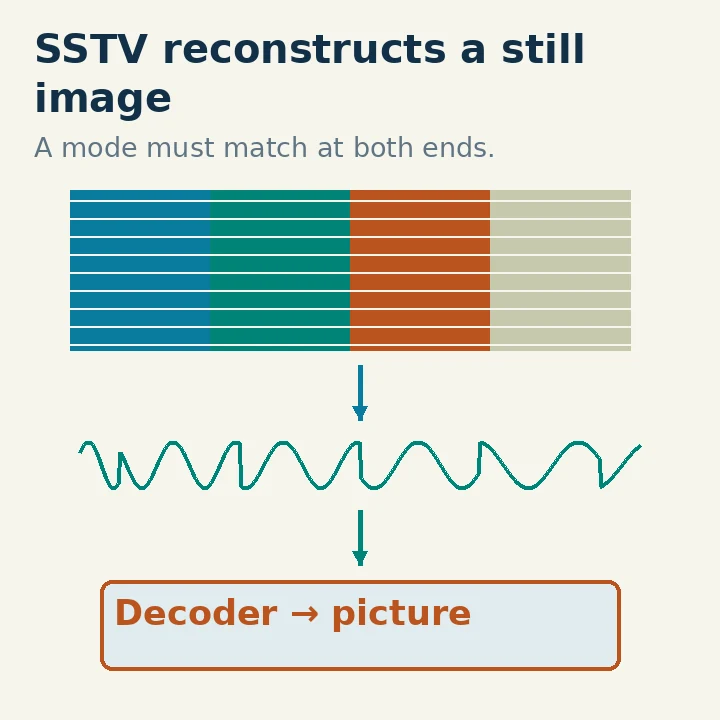
SSTV means slow-scan television: still pictures are conveyed over radio as an audio-modulated signal. Here the main beginner task is ordinary analog SSTV. Digital image modes such as HAMDRM are a separate compatibility question, even when one application supports both.
Decide Between Receiving and Transmitting First
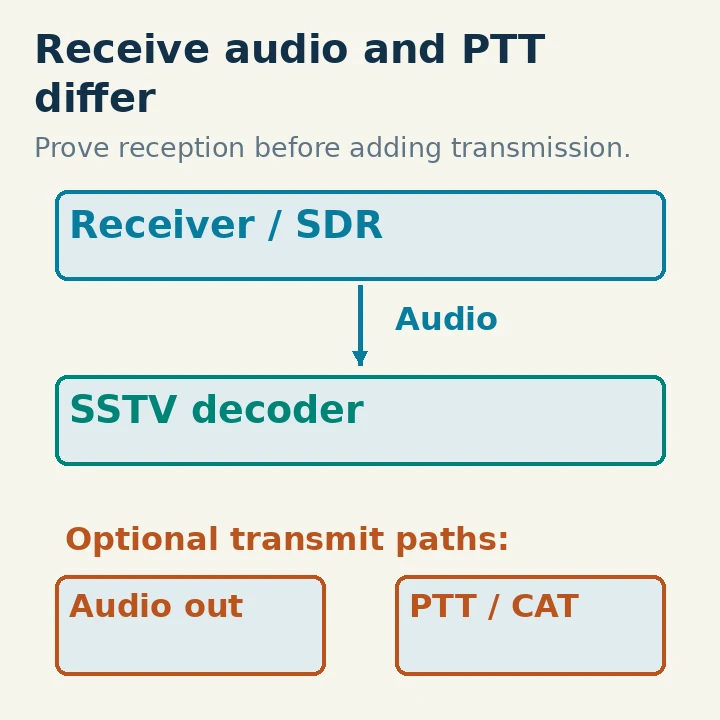
For reception, the essential chain is receiver audio into the computer, then a decoder that supports the transmitted SSTV mode. A receive-only SDR can be enough. There is no need to solve CAT, microphone wiring or transmitter keying before you can learn to receive pictures.
Transmission adds an image-preparation path, computer audio to the radio and a supported PTT method. PTT is the control that changes the radio from receive to transmit. A program can generate valid SSTV audio while having no working way to key your radio.
A beginner who wants to receive occasional pictures therefore has a different requirement from someone planning regular two-way image contacts. Write down the immediate goal before comparing software. It can keep you from spending the first evening configuring functions that your first task does not use.
Also identify whether you need live audio, decoding from a saved file, or both. File decoding is particularly useful for separating a software problem from uncertain live RF reception.
Check the Picture Mode, Not Only the SSTV Label
Analog SSTV includes mode families such as Martin, Scottie, Robot and PD. The sender and receiver must agree on the actual mode to reconstruct the image correctly. Automatic mode detection is helpful, but a supported manual mode selection remains useful when the beginning of a weak transmission was missed.
The VIS identification at the start of many analog SSTV transmissions helps identify the mode. It is not a guarantee that a decoder will recover every weak or damaged picture. A program can trigger on a misleading fragment or fail to detect a header that is lost in noise.
Digital HAMDRM/DSSTV should not be assumed compatible with an analog SSTV mode simply because both transport pictures. QSSTV's project description explicitly lists both analog SSTV and HAMDRM capabilities, making the distinction important when comparing its features with an analog-only task.
Before installing, check the particular mode list in the project's documentation. If your target activity specifies a mode, use that as a requirement rather than assuming “automatic” covers it.
Compare a Bounded Shortlist
The following three candidates illustrate useful choices as checked October 29, 2026. This is not a measured performance ranking or an exhaustive catalog.
MMSSTV is a long-established Windows application by JE3HHT, Makoto Mori. Its official distribution page lists version 1.13A, dated September 29, 2010, and describes Windows XP, Vista and Windows 7. It also supplies test audio and related help materials. That makes it a useful established workflow to investigate, but the old OS list is not proof of compatibility with your current Windows installation.
Choose it when you want that Windows workflow and can verify it on the actual computer, audio device and station arrangement. Retain its settings before changes. Do not infer a current Windows guarantee from a video that used different hardware or a previous system release.
QSSTV is an open-source application for receiving and transmitting analog SSTV and HAMDRM. The current project README provides Linux-oriented build dependencies and also macOS build instructions. That is different from promising a simple native installer for every platform. A maintained distribution package can be convenient where available, but verify its version and associated documentation.
Its configuration manual describes sound-card input, saved-file decoding, audio recording and CAT/PTT options. These can be valuable if you want to inspect and retain the whole signal path. Choose it when the package or build route suits your system and you are comfortable checking audio-device names and supporting libraries.
Black Cat SSTV is a commercial Windows/macOS application with a fully featured trial described on the developer's page. The page lists a stable release separately from a newer macOS beta. It describes image transmission, serial PTT and automatic skew/offset correction. Treat the developer's weak-signal performance descriptions as claims to evaluate in your own trial, not as a comparative test performed here.
Choose it when a supported packaged application and trial workflow fit your computer. Verify the listed OS version and processor requirements for the exact download. A beta's existence is not a reason to replace a working stable version without a backup.
Match the Audio Path Before Judging Decoding Quality
For a radio with USB audio, select its actual receive-audio device in the program. For an SDR application, establish an appropriate software audio-routing path into the SSTV decoder. For an older receiver, use a suitable physical audio interface and follow the receiver's output guidance.
Avoid making a microphone-in-front-of-the-speaker test your only comparison between programs. Room noise, acoustic feedback, volume and microphone processing can vary independently of the decoder. A direct, repeatable audio source is a better way to compare the software itself.
Set the correct sideband and a receive bandwidth that passes the complete signal for the selected mode. An overly narrow communications filter can remove tones the image decoder needs. Turn off speech-oriented effects for the initial comparison and avoid input clipping.
Check file-format requirements as well. QSSTV's configuration documentation, for example, gives particular WAV playback guidance and lets you route sound input from a file. A failure to read a file with an unsupported format is not evidence that its SSTV signal is undecodable.
Run the Same Receive Test in Each Candidate
Use a known SSTV audio recording whose mode is identified, preferably a project-supplied test file. MMSSTV's distribution page includes audio test material; QSSTV documents file input. If an application requires live input rather than direct file decoding, route the playback consistently and make sure it reaches the selected device.
Keep transmit functions disabled. Select the known mode manually for the first run so automatic detection is not the only thing being tested. Check whether the image starts, remains aligned, completes, and can be saved somewhere you can find.
Then repeat with automatic mode selection if you intend to use it. Test a second recording or a live transmission before drawing a broad conclusion. One clean sample proves less than a reliable live workflow, while one poor on-air image can simply reflect fading or interference.
Record the software version, audio source, selected mode and any corrections used. A useful acceptance note says “decoded this complete sample using this input,” not merely “looks better.” This keeps your comparison grounded if an audio-device or operating-system update changes behavior later.
Investigate Slant, Offset and Missing Pictures Separately
A steadily sloping image can indicate a timing/sample-clock problem or a mode mismatch. Confirm the mode first, then use the program's documented clock or slant calibration with a suitable reference. Do not adjust calibration from one noisy image and assume the new value is correct for every station.
A sideways offset can need image alignment rather than a new audio device. Failure to start can involve a missed identification header, incorrect mode, wrong input or no audio. Distortion and missing detail can involve fading, clipping or filtering. Treat those as different symptoms.
Black Cat describes automatic skew and offset correction, while QSSTV exposes receive/transmit clock settings in its configuration documentation. Those are useful differences in workflow, but neither means every damaged signal can be repaired.
A program that decodes the known recording but fails on live radio has already narrowed the investigation: check the actual received audio, mode and signal conditions before reinstalling the application.
Add Transmitting Only After the Receive Choice Works
If you plan to transmit, confirm image preparation, supported analog mode, correct output device and the radio's documented audio input. Keep operating-system alerts away from that output. Establish PTT separately: CAT, a serial control line or VOX can require different settings and safeguards. QSSTV and Black Cat document relevant control options.
Verify that selecting a control port does not key the radio unexpectedly. Use a properly arranged test setup before a live image, and respect the radio's sustained-transmission limits. A whole picture can keep the transmitter active much longer than a short voice check.
For US RF operation, the control operator must have image privileges on the selected frequency. Technician, General and Amateur Extra privileges differ by band and segment; a popular HF SSTV frequency is not automatically available to every class. FCC §§97.301, 97.305 and 97.307 were checked October 29, 2026.
The final choice should leave you with a repeatable receive test, understandable mode selection, retained settings and a clear path to any later transmission. That is a stronger reason to keep an application than an unsupported claim that one decoder is universally best.